How to Setup Goldshell E-AE1M and Goldshell AE Max, AE Max II Aleo Miners: Step-by-Step Guide for Beginners
Setting up your Goldshell E-AE1M, AE Max or AE Max II miner can be a problem for many Aleo miner Beginners. This comprehensive guide walks you through the entire process from unboxing to mining your first ALEO coins. Whether you’re a beginner or experienced miner, these step-by-step instructions will help you get your Goldshell ASIC miner operational quickly.
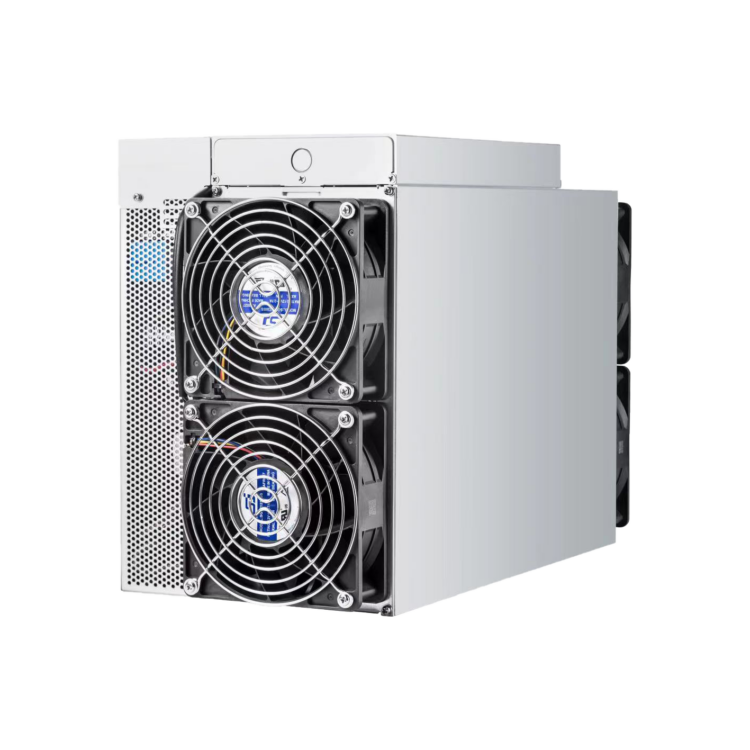
Introduction to Goldshell E-AE1M and AE Max & AE Max II Miner Specifications
Goldshell has established itself as a reputable manufacturer of ASIC mining hardware. Their E-AE1M, AE Max, AE Max II miners are powerful devices designed specifically for mining for Aleo.
Comparison Chart: E-AE1M vs AE Max vs AE Max II
| Specification | E-AE1M | AE Max | AE Max II |
| Hashrate | 230 MH/s | 360 MH/s | 540MH/s |
| Power Consumption | 2000W (±5%) | 3300W (±5%) | 3200W(±5%) |
| Efficiency | 8.69 J/MH | 9.16 J/MH | 5.93J/MH |
| Dimensions | 443 x 360 x 135 mm | 200 x 264 x 290 mm | 200 x 264 x 290 mm |
| Weight | 15.15kg (17.75kg) | 11.1kg (12.5 kg) | 12.45kg (13.6kg) |
| Noise Level | ≤ 60 dB | ≤70 dB | ≤85dB |
| Algorithm | zkSNARK | zkSNARK | zkSNARK |
| Cooling | Air-cooled | Air-cooled | Air-cooled |
| Network Connection | Dual-Mode (Ethernet/WIFI) | Dual-Mode (Ethernet/WIFI) | Dual-Mode (Ethernet/WIFI) |
| Interface | Web-based | Web-based | Web-based |
All three miners operate at around 60~70 dB noise level, which is typical for ASIC miners.
Prerequisites & Requirements
Before setting up your Goldshell miner, ensure you have the following essentials:
Hardware Requirements
- Power circuit capable of handling at least 20 amps at 220V (North America) or 16 amps at 230V (Europe)
Step-by-Step Setup Guide
Unboxing and Physical Inspection
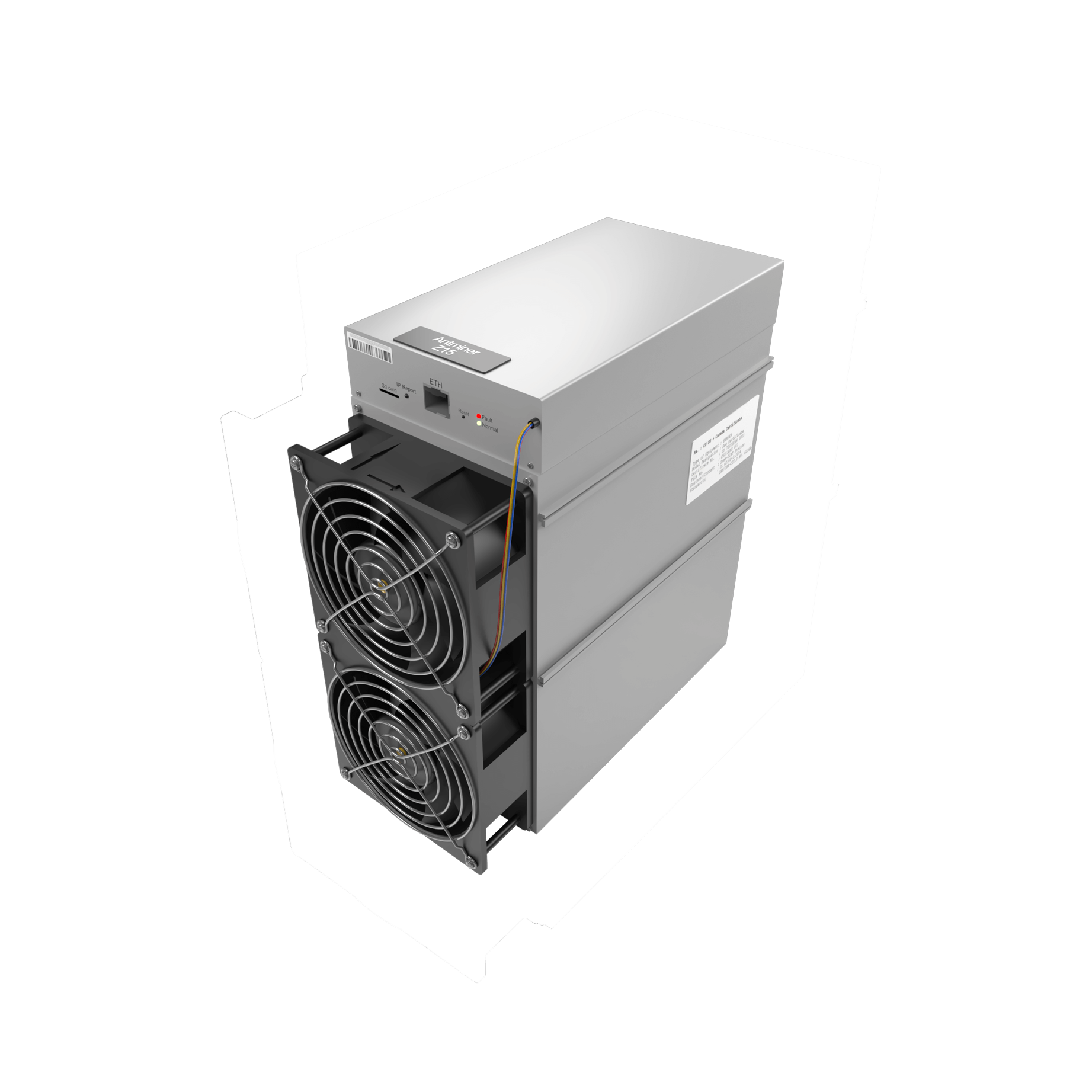
When your Goldshell miner arrives, carefully unbox it and perform a thorough inspection:
- Remove all packaging materials and check for any visible damage to the exterior case.
- Inspect the fans for any obstructions or damage.
- Check that all ports are intact, particularly the power and Ethernet connections.
Power Supply Connection
Proper power connection is critical for both performance and safety:
Plug the internet cable:
Locating Your Miner’s IP Address
Before you can configure your miner, you need to find its IP address:
- Access your router’s admin panel (typically by entering 192.168.1.1 or 192.168.0.1 in your browser).
- Look for the “Connected Devices” or “DHCP Clients” section.
- Identify your Goldshell miner by its MAC address (printed on the device) or hostname (usually contains “Goldshell”).
- Note the assigned IP address.
- Consider reserving this IP address in your router’s DHCP settings to ensure it doesn’t change.
Alternatively, you can use network scanning tools:
- For Windows: Use “Advanced IP Scanner” or “Angry IP Scanner”
Some Goldshell miners also support the “Find My Goldshell” feature on their website, which can help locate your miner on the network. If all else fails, you can reset the miner to factory defaults, which will typically set it to obtain an IP address automatically via DHCP.
Accessing the Miner Dashboard
Once you have the IP address, you can access the miner’s web interface:
- Open a web browser on your computer or smartphone.
- Enter the miner’s IP address in the address bar (e.g., http://192.168.1.100).
- You should see the Goldshell login page.
- Enter the default credentials (typically username: admin, password: admin).
- Upon first login, you’ll likely be prompted to change the default password. Create a strong, unique password.
The dashboard provides comprehensive information about your miner’s status, including:
- Current hashrate
- Temperature readings for each hash board
- Fan speeds and status
- Pool connection status
- Firmware version
- Uptime statistics
- Rejected share percentage
- Network difficulty
- Estimated earnings
Take time to familiarize yourself with the interface before making any changes.
Pool Configuration and Start Mining
To begin mining, you’ll need to configure your miner to connect to a mining pool:
- From the dashboard, navigate to the “Miner Configuration” or “Pool Settings” section.
- Enter the pool URL (e.g., stratum+tcp://alph.herominers.com:1199).
- Enter your wallet address as the worker name or according to the pool’s requirements.
- Some pools require a password (often just “x” or your email address).
- Save the configuration and restart the miner if prompted.
- Monitor the dashboard to confirm the miner is connecting to the pool and submitting shares.
- Configure at least two backup pools that the miner can switch to if the primary pool experiences issues.
- Consider setting up worker names that help identify specific miners (e.g., AEMax01).
- Check the pool’s minimum payout threshold and fee structure.
- Verify that shares are being accepted by checking both the miner dashboard and pool website.
Optimizing Pool Settings for Different Mining Pools
Whalepool Configuration:
- URL: stratum+tcp://alph.woolypooly.com:3106
- Worker: YourWalletAddress.WorkerName
- Password: x
- Features: PPLNS payment method, 1% fee, 0.1 ALPH minimum payout
- Optimization: Their API allows for detailed monitoring of your workers
After setup, monitor your miner for the first 24-48 hours to ensure stable operation, checking for consistent hashrate, normal temperature ranges, and proper fan operation. According to data from Goldshell support forums, most configuration issues become apparent within the first 12 hours of operation.
CONCLUSION
Goldshell E-AE1M, AE Max, and AE Max II miners, operating on the zkSNARK algorithm, are dedicated devices for Aleo mining, with hashrates of 230 MH/s, 360 MH/s, and 540 MH/s respectively. Among them, the AE Max II stands out with an efficiency of 5.93 J/MH, showing strong performance. These air-cooled miners with Ethernet connections require a power circuit capable of handling at least 20 amps at 220V (North America) or 16 amps at 230V (Europe) for setup. Following the step-by-step guide, from unboxing inspection to pool configuration, even beginners can get them up and running. If you encounter any difficulties during the setup of Goldshell E-AE1M, AE Max, AE Max II, or other Aleo miners, you can seek assistance from BT-MINERS relevant technical support or mining communities.